Your app is done. The build is uploaded, the release notes are written, and the version is ready to submit. Now it needs screenshots: up to 10 for each device size, for every device you support, in up to 50 languages.
Most guides cover how to make your first set. This one is about the second set, and the tenth. That's the set you redo on release day, usually in a hurry, and it's where your choice of tool really shows.
The short answer: create the new version in App Store Connect. It starts with your current screenshots. Capture only the screens that changed, replace those slots in every size and language, and submit the screenshots with the build. The slow part is the multiplying, and how slow it is depends on what you build them in.
How App Store Connect handles screenshots on a new version #
Screenshots belong to an app version, not to the app. That one rule explains most of release day:
- A live version is locked. You can't swap the screenshots on the version people are downloading. To change them, you need a new version.
- A new version starts with your old screenshots. When you add a version in App Store Connect, it starts with the screenshots of the previous one. If nothing changed visually, you don't have to do anything.
- You replace by slot. Each localization has its own screenshot sets for each device size. Change one screen and you change that slot in every size and every language that has its own copy.
- The rules can change between releases. The required iPhone set moved to 6.3-inch (1206 × 2622) this year, and apps submitted from April 2027 also need iPhone Duo screenshots. A set that passed last time can be missing a size this time. The cheat sheet has the new names.
There are two ways to show different screenshots without a new version. A Product Page Optimization test puts new screenshots in front of part of your traffic, and Custom Product Pages show them to people who arrive from a specific link. Neither one changes your default product page. The new header and search result visuals in Asset Library can also be swapped without a submission, but they sit alongside your screenshots and don't replace them.
What actually changes from one release to the next #
Before you open any tool, list what this release changes. Most releases touch only a few slots:
| What changed | What you redo |
|---|---|
| A new feature with its own screen | One or two slots: a new capture and a new caption, in every language |
| An existing screen was redesigned | Those slots: a new capture, same caption |
| A system redesign, like iOS 26's Liquid Glass | Every capture, because the old ones now look dated |
| A new required size | Every slot, at the new size |
| A new market | Every caption, translated into the new language |
| Better caption copy | The captions only, in every language |
The captures are rarely the slow part. Taking six new screens from the Simulator takes ten minutes. The slow part is everything a capture multiplies into: each size, each language, each caption that now has to fit.
Three ways to redo the set #
There are three common ways to make App Store screenshots. All three can produce a good first set. They differ in what the second set costs.
1. Rebuild them in Figma #
Figma is where many teams make their first set, and a good Figma template makes that set look great. Release day is harder. Each new capture has to be placed in a frame for every size you export, and each frame has a copy for every language. Change one screen and you touch it in every frame. Then you export every size, check the pixel dimensions, and drag the files into App Store Connect one locale at a time.
Components help, and a well-built file with auto layout and variables cuts the work a lot. But the file is still a grid of sizes × languages, and someone has to keep it in sync. Our Figma comparison goes into the trade-off in more detail.
Good for: a single language, a team with a designer, or a set that rarely changes.
2. Generate them with an AI image model #
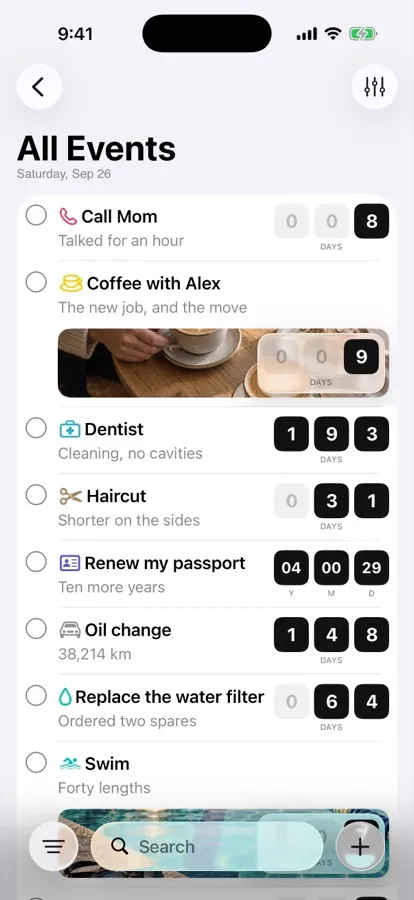
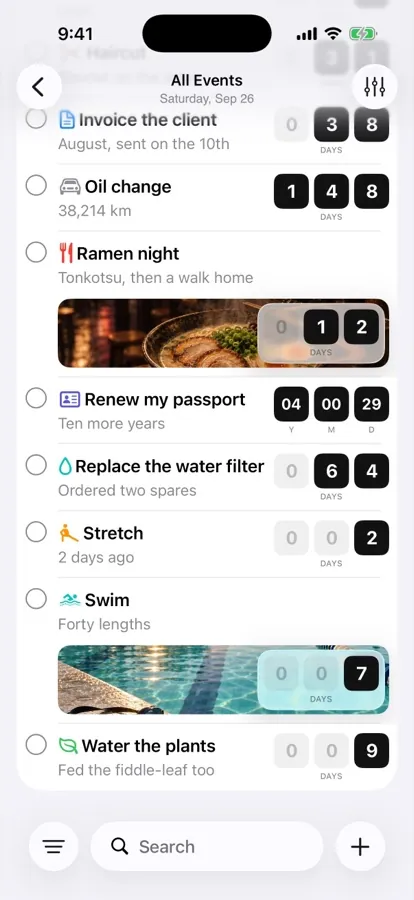
The newest option is to ask an image model, like ChatGPT, to make the screenshots for you. The result looks polished at a glance. It falls apart on release day for four reasons:
- It redraws your UI. An image model doesn't place your capture. It paints a new picture of an app that looks a bit like yours. Apple's Guideline 2.3.3 asks that screenshots show the app in use, and screens your app doesn't have are a common rejection reason.
- The captions come out misspelled. Image models still get text wrong, especially at small sizes. "When did you last call Mom?" comes back as "Whem did you lsat cal Mom?" In Japanese or Arabic it gets worse, and you may not be able to tell.
- Every retry looks different. Regenerate one slot and its style no longer matches the other nine. Next release, nothing matches last release either.
- The sizes are wrong. Image models output their own fixed sizes, not 1206 × 2622, so every image still needs resizing, and App Store Connect rejects any file that is off by a pixel.
AI is genuinely useful for App Store screenshots, just not for drawing them. It's great at writing caption candidates and translating them, around real captures of your app. Our guide to what an AI screenshot generator actually does covers where it helps.
Good for: mood boards and background ideas. Not for the screenshots you submit.
3. Update them in Screenshot Studio #
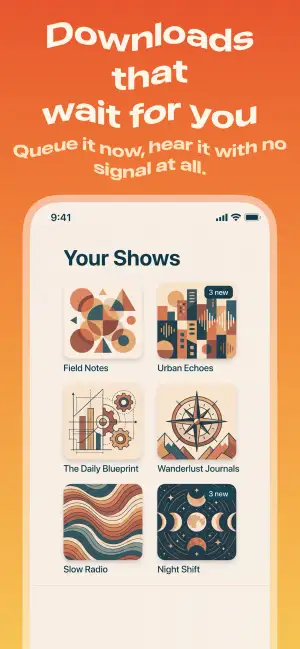
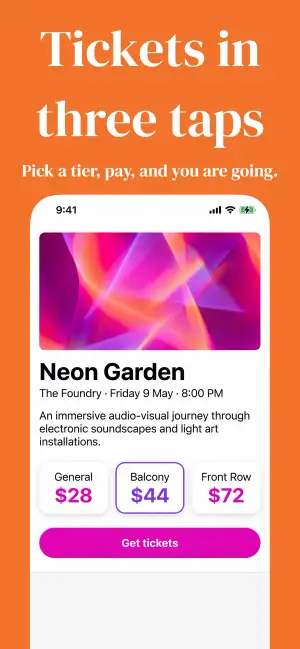
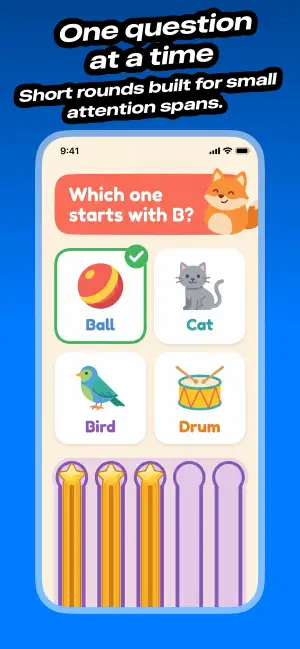
A screenshot generator treats the set as one design instead of a grid of files. In Screenshot Studio, last release's set is a document on your Mac, saved next to your project. Release day looks like this:
- Open last release's document. The design, captions and translations are all still there.
- Drop the new captures into their slots. Import them into the base language. A language without its own capture uses the base language's, so one new capture updates every locale at once.
- Edit the captions that changed. Then translate them with the built-in AI. There's no API key or spreadsheet. You can still edit any language by hand.
- Add what's new. A new language is a few clicks. A new required size needs no redesign, because one design exports to every size for iPhone, iPad, Mac, Watch, TV and Vision Pro.
- Upload. Pick the new version, and Screenshot Studio uploads to App Store Connect directly, placing each screenshot by platform, locale and order.
If you would rather not click through it, an AI assistant like Claude Code or Cursor can make the same changes over MCP: "Import the screenshots in this folder into the iPhone slots in order, then translate the new captions."
Good for: any app that ships more than once, in more than one language.
Side by side #
| Figma | AI image model | Screenshot Studio | |
|---|---|---|---|
| Shows your real app | Yes | No, it redraws it | Yes |
| Captions spelled right | Yes | Often not | Yes |
| Matches last release | If the file is kept in sync | No, every run differs | Yes, same document |
| Every required size | One frame per size | Needs resizing | Exported from one design |
| Up to 50 languages | One copy per language | One prompt per language | Built-in AI translation |
| Upload to App Store Connect | By hand | By hand | Direct upload |
| One changed screen costs | Every frame, every language | A new set | One capture, one caption |
For what each approach costs in hours and money, see how much App Store screenshots cost. For other generators, see our comparison of five tools.
A release-day checklist #
Whichever tool you use, this order avoids most surprises:
- Create the new version in App Store Connect, so there is an editable version to upload to.
- List what changed using the table above. Skip the slots that didn't.
- Check the required sizes against the sizes guide. Something may have changed since your last submission.
- Capture the changed screens from the Simulator or a device, with realistic data and a clean status bar.
- Update the captions and translate them. Keep each one short enough to read on a thumbnail. The caption guide has examples.
- Upload and check one locale in App Store Connect before you submit. If you see "Please save new locales", here is the fix.
- Submit the screenshots with the build. They go to review together.
Conclusion #
Release day isn't hard because of the screenshots you change. It's hard because of how many times each change repeats. Figma makes you repeat it by hand, and an AI image model makes you start over. A generator lets you change it once.
Download Screenshot Studio, build your set for free, and make the next release the quick one.