For years, the only visuals we could put on an App Store product page were our screenshots and app previews. They had to show the app, and they appeared in search results by default.
At WWDC26, Apple changed that. In the session Enhance your presence on the App Store, the App Store Connect team introduced two new places for marketing images and videos, and a new way to manage them.
In this article, we will answer these questions:
- Where do the new images and videos show up?
- What are "creative assets"?
- How do we get them approved?
- How do we change them without submitting a new version?
Two new places for images and videos #
Today, when someone sees your app on the App Store, they see screenshots and previews in two places: the product page and search results. Both places get new options.
Product Page Header #
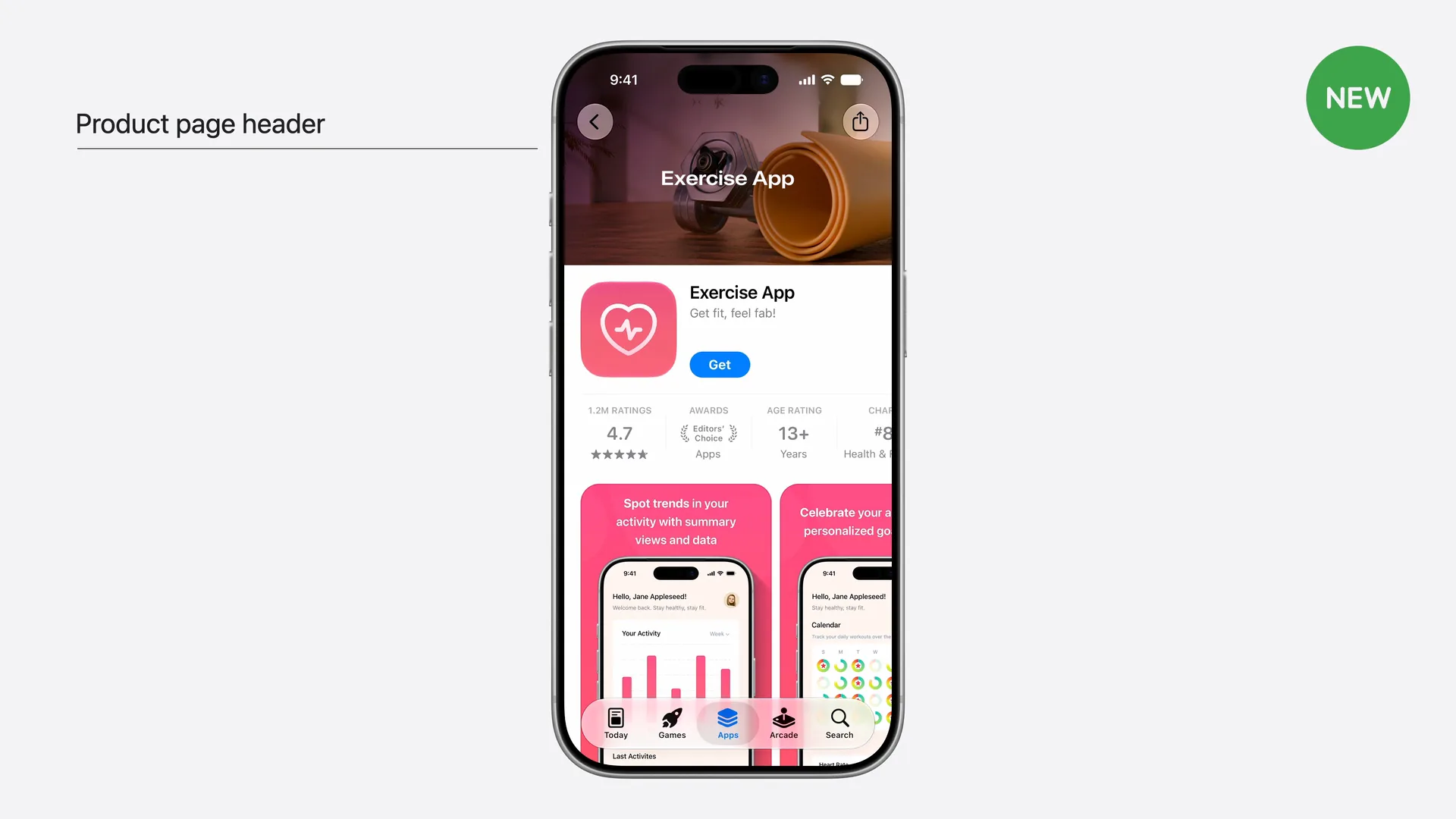
Your product page can now have a header. It is the first visual element people see when they land on your page, and it doesn't have to be a screenshot.
You can use an image or a video. Apple suggests using it to express your visual identity or brand. A video lets you control the story of how people first see your app.
The header doesn't replace your screenshots. The header, the app icon and the screenshots work together: the header catches attention, and the screenshots explain what the app does.
Search Results #
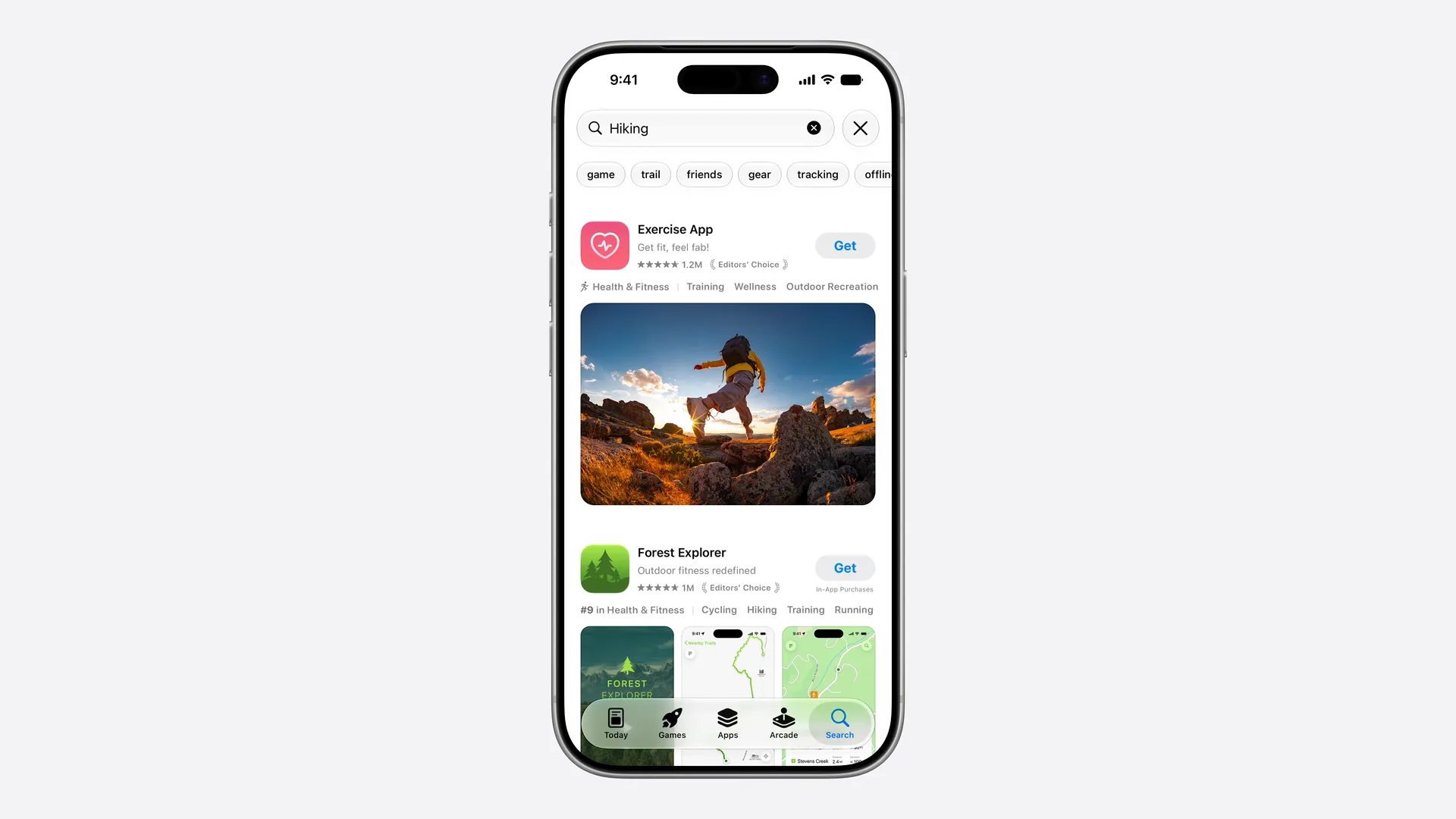
Search results used to show your screenshots or preview. Now you can show an image or a video there instead.
Apple's advice here is different from the header. In search, people are comparing apps, so the visual should communicate your app's core value clearly enough that people tap to learn more.
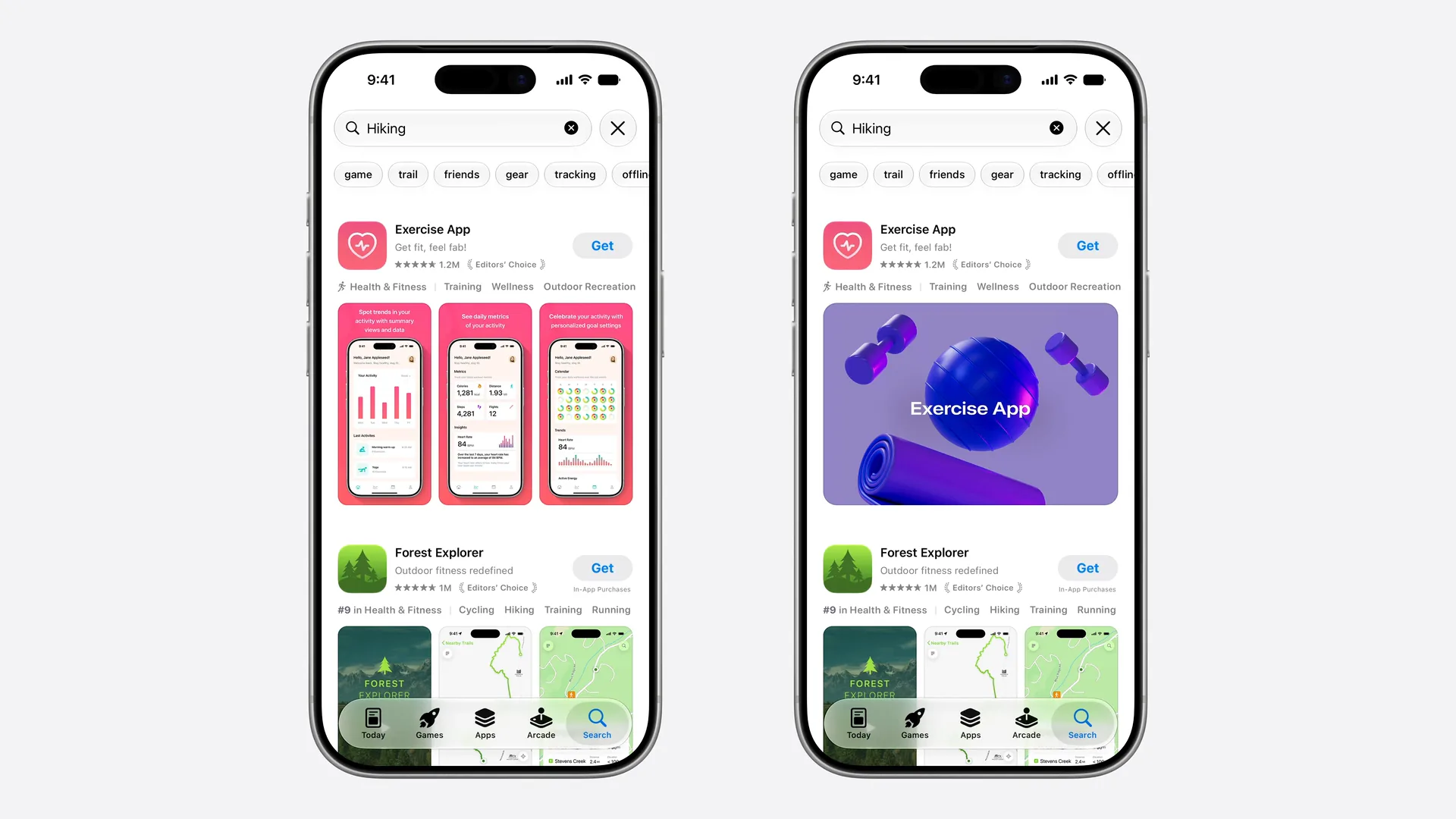
Both placements show on iOS 27 and iPadOS 27.
Creative assets #
In App Store Connect, these new marketing images and videos are called creative assets.
The name matters, because the same creative assets can be used in more places than the header and search results:
-
Apple Ads. Use them in ads on the Today tab and in search results.
-
Custom Product Pages. Each Custom Product Page can have its own header and search result visual.
-
Product Page Optimization. Test different visuals to see which one your audience responds to best, whether that's your logo, your core value or a new feature.
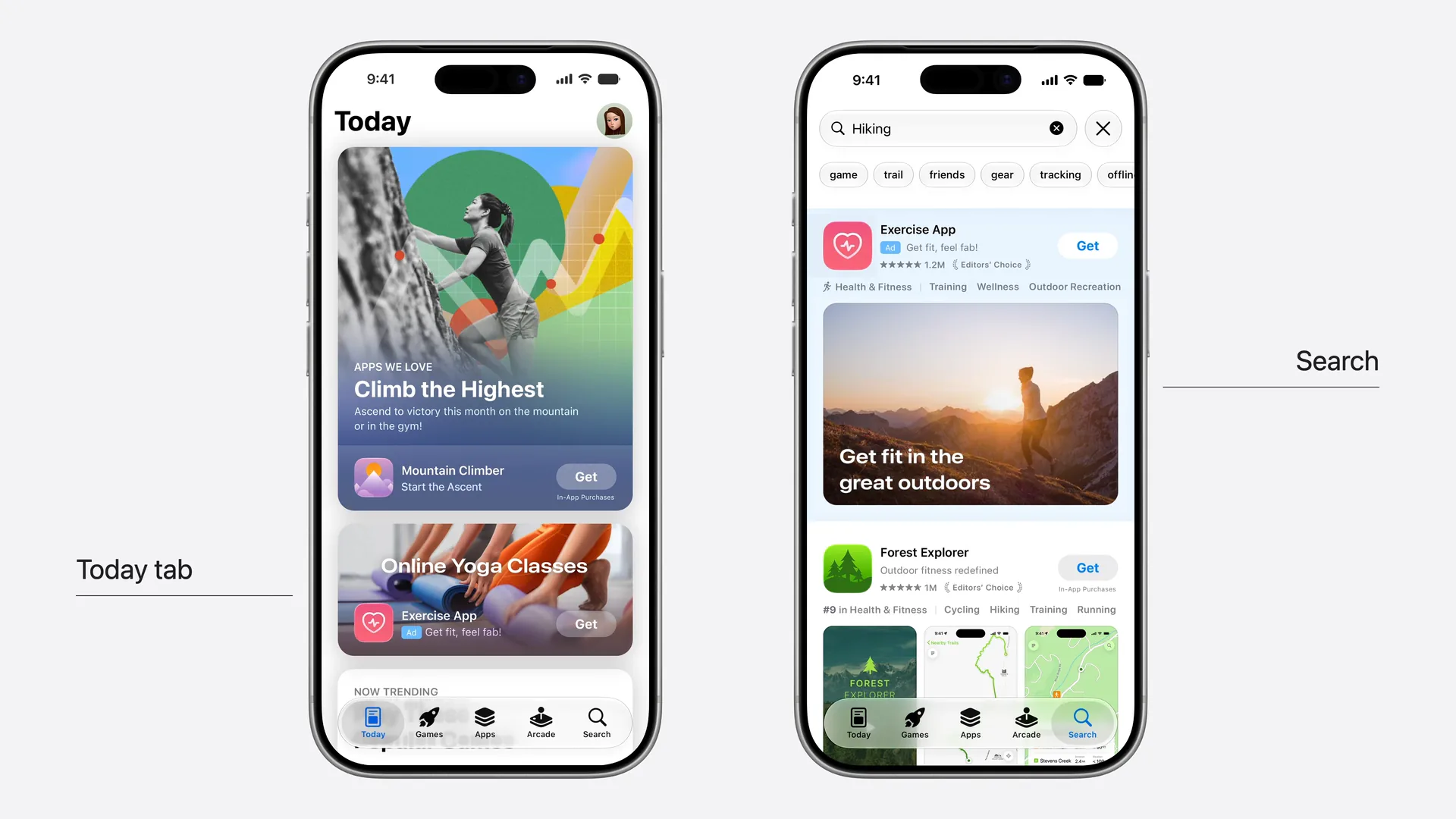
Creative assets used in Apple Ads, on the Today tab and in search results. Image: Apple, WWDC26.
Custom Product Pages get more useful #
Apple showed two examples that make Custom Product Pages more interesting than before.
Match your website. An exercise app promotes yoga classes with a banner on its website. That banner links to a Custom Product Page, and that page can now use the same banner as its header. With a deep link, people who download the app land right in the yoga section. The story is the same from the website, to the App Store, to the first launch.
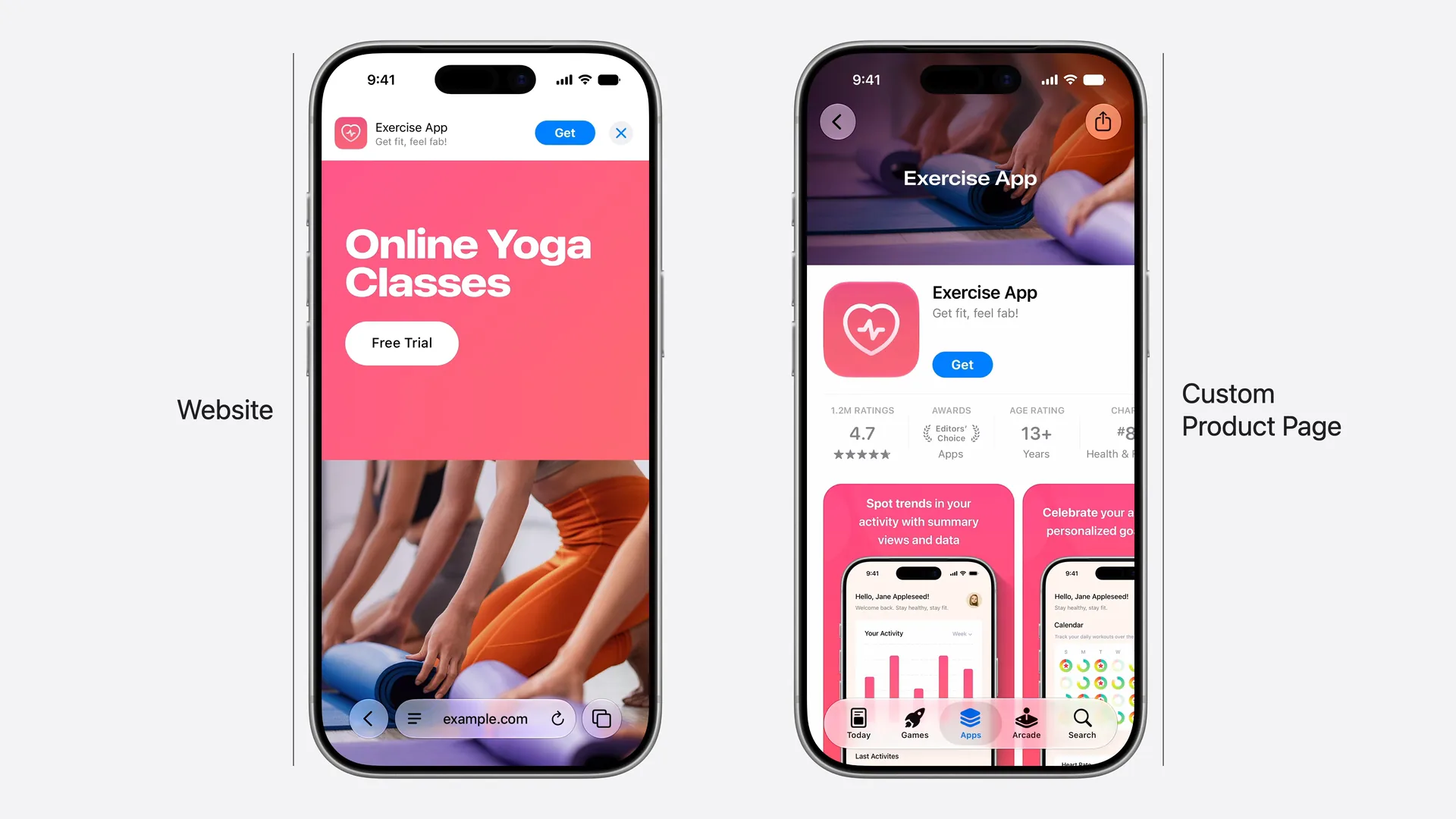
Match the search keyword. A Custom Product Page can be shown for specific search keywords. Each one can now have its own search result visual, so a search for one feature shows a visual about that feature. Apple suggests using the same asset for the header and the search result of a page, so the experience feels continuous after the tap.
If you haven't used either feature yet, our post on Product Page Optimization vs Custom Product Pages explains the difference.
Two ways to get creative assets approved #
Creative assets go through App Review, like everything else on your product page. There are two ways to submit them.
1. With an app version #
This is the flow we already know.
- Upload the assets on your app's version page.
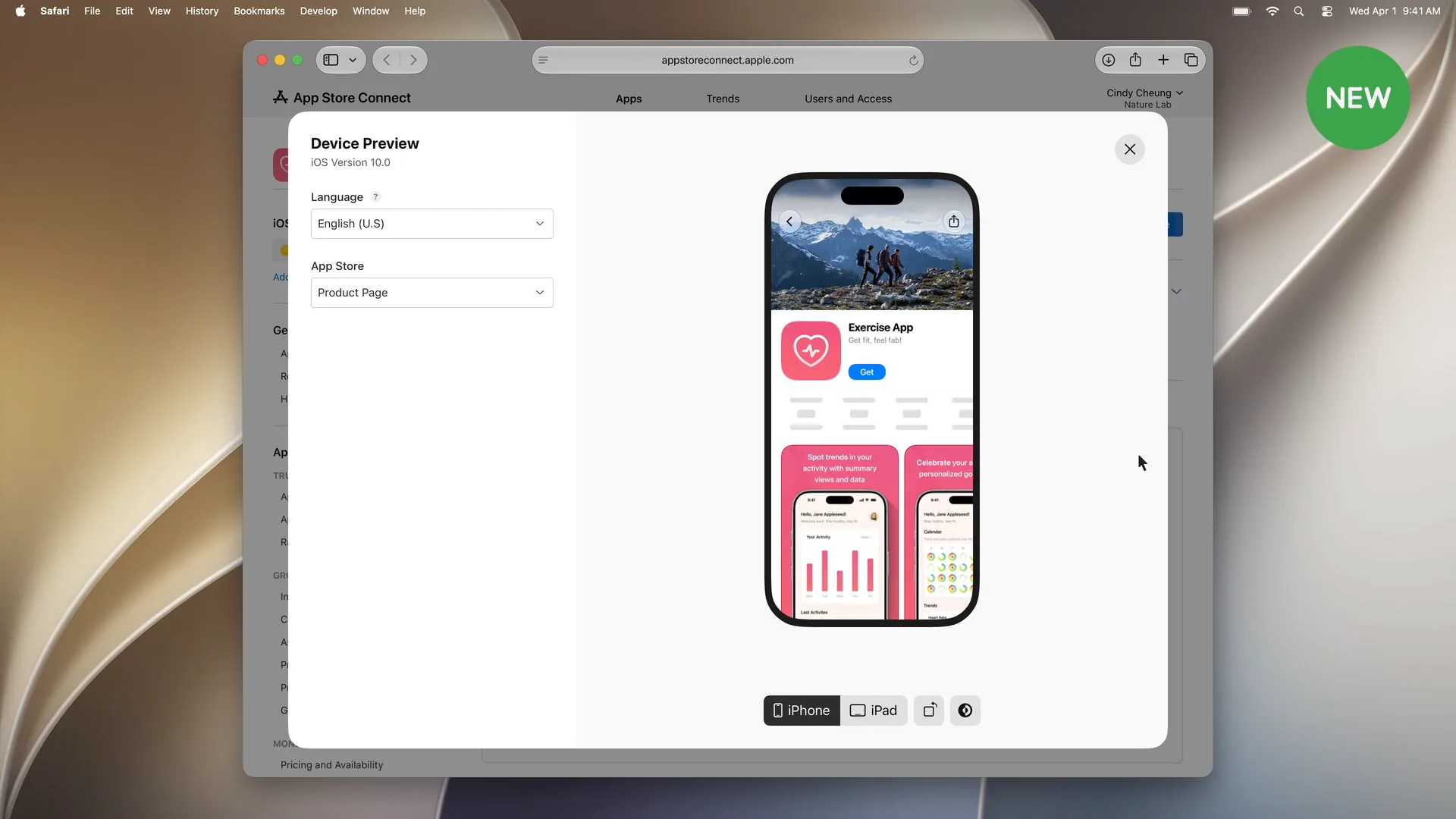
- Use the new Preview to see how your product page looks with them.
- Submit the version for review.
When the version is approved and released, the new header and search result visuals go live with it.
The Preview is worth calling out. It shows your page on iPhone and iPad, in different orientations and in every language before you submit, so you can check how the header, icon and screenshots look together.
2. Through Asset Library #
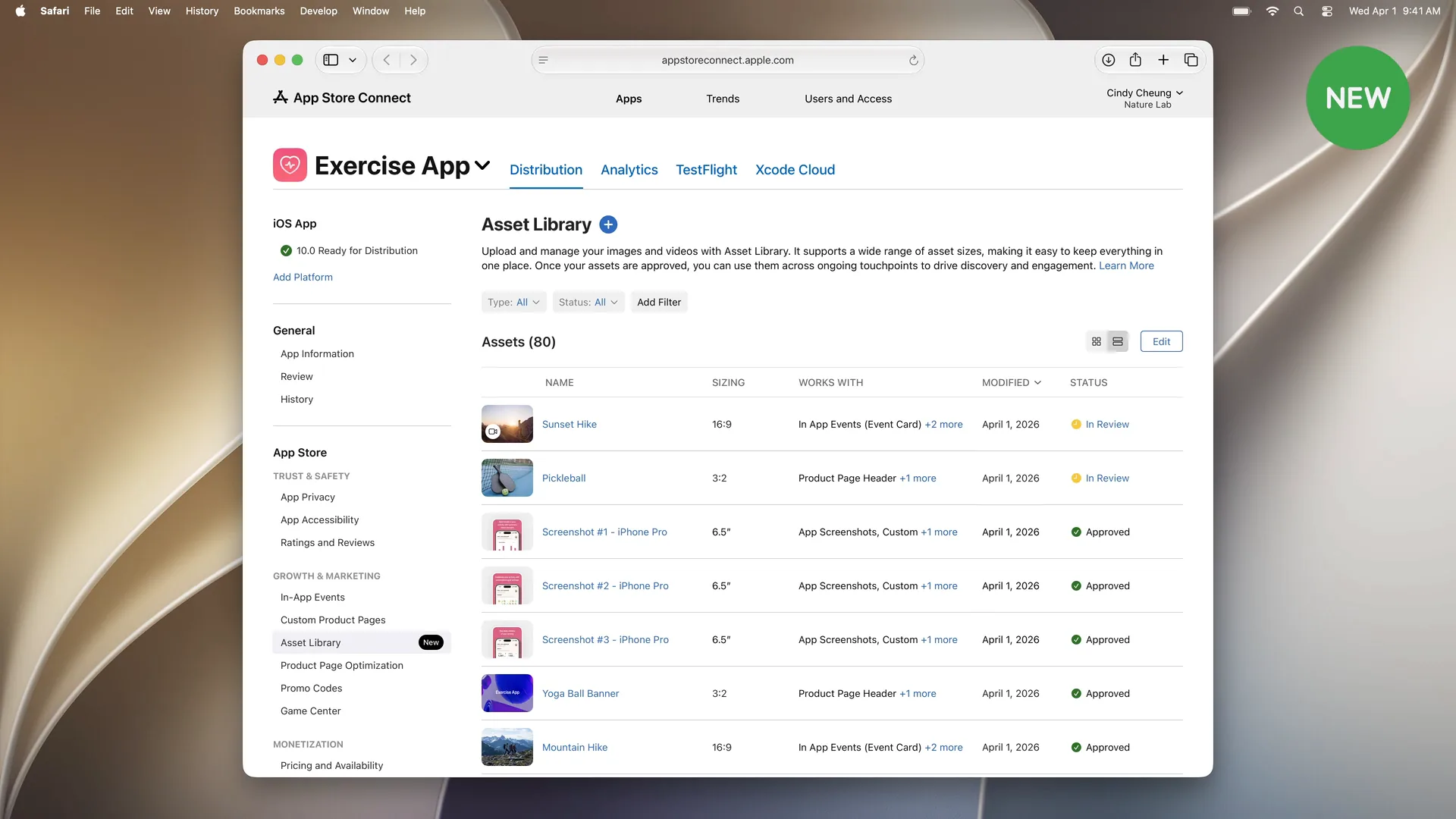
Asset Library is a new place in App Store Connect that holds all your app's visuals: screenshots, app previews, in-app event media, and creative assets, across platforms, sizes and placements.
You upload creative assets to Asset Library and submit them for review on their own. You don't need a new app version, and you don't need to say where you plan to use them.
Change visuals without a new submission #
This is the biggest change in the session.
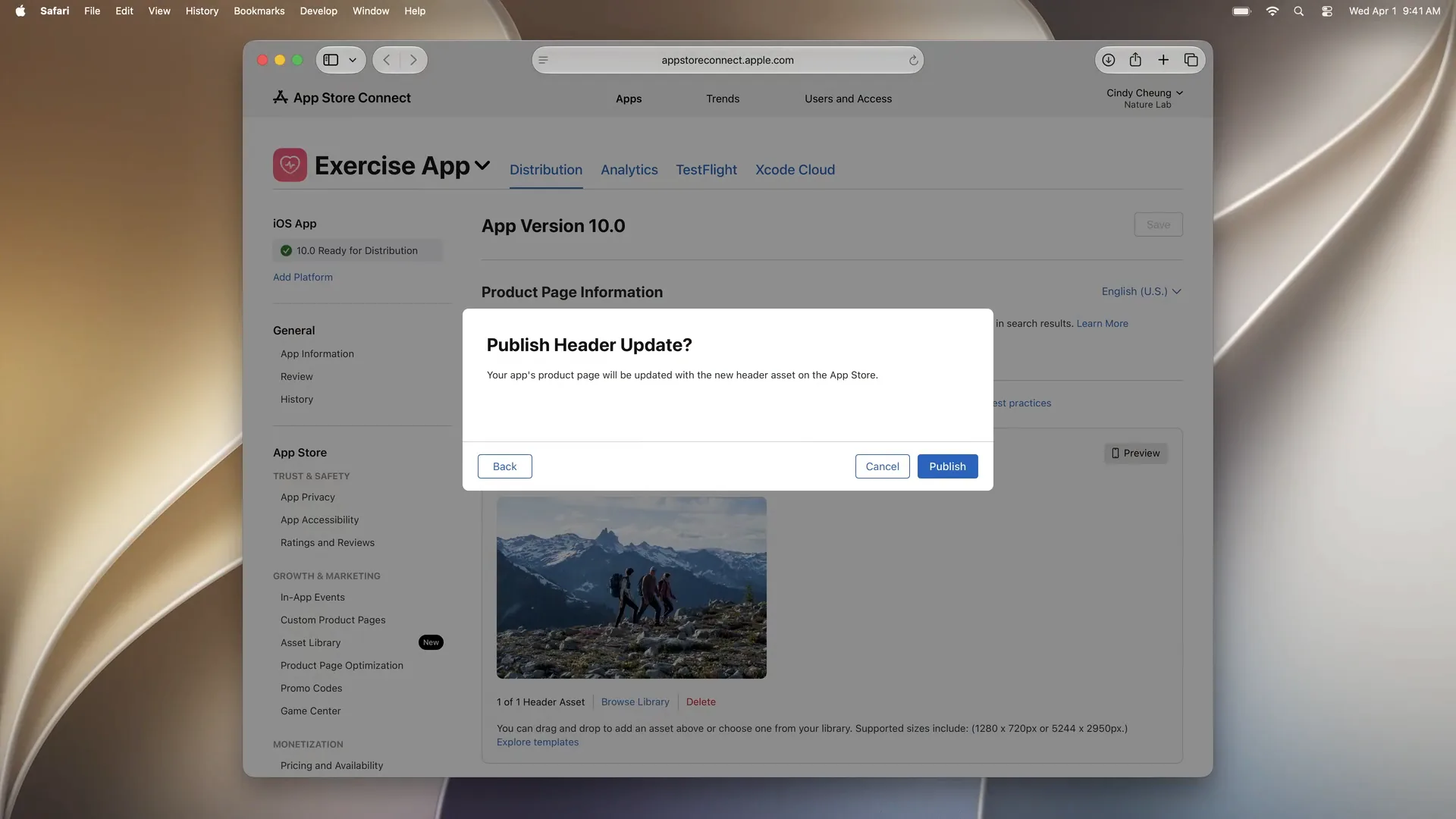
Whichever way an asset was approved, it ends up in Asset Library. And approved assets can be used on your Product Page Header and Search Results without another review.
Apple's example is a hiking app with a summer hiking image in its header. When the season changes, the developer picks an approved winter hiking image in Asset Library and publishes. The App Store updates right away, with no new submission.
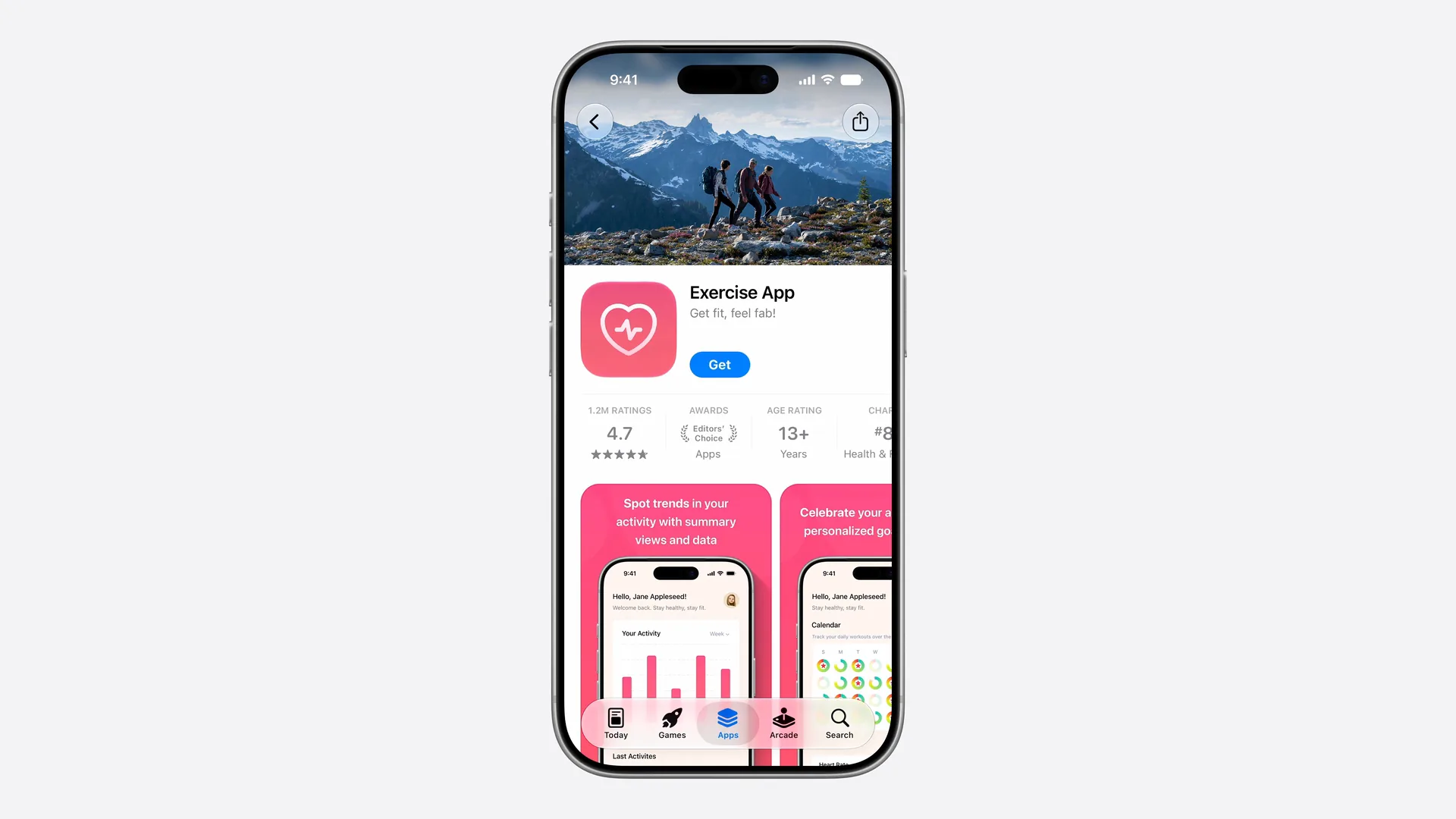
So the workflow becomes:
- Prepare visuals for the seasons, events and features you plan to promote.
- Get them approved ahead of time.
- Swap them in when you need them.
Automate it #
Both flows can be automated:
- The App Store Connect API can upload creative assets to Asset Library and submit them for review.
- The Apple Ads Platform API can automate ad setup, with open-source client libraries for Swift and other languages.
What this means for your screenshots #
The header gets the first look now, so it's tempting to think screenshots matter less. I see it the other way around.
The header sells the feeling. Your screenshots still do the explaining, and they are still what people scroll through before they decide. A product page reads best when the header and the screenshots tell the same story, rather than two different ones.
A few things to plan for:
- Design the header and the screenshots as a set. Use the same colors, typography and message.
- Plan per locale. The Preview shows every language, which means every language needs a header that fits.
- Think in campaigns. Since approved assets can be swapped without review, a seasonal header and a matching set of screenshots are now a normal release task, not a special project.
If you make your screenshots with Screenshot Studio, the same project gives you every App Store size and every language, so updating the screenshots to match a new header is quick.
Next steps #
Apple's suggestions from the session:
- Start preparing the images and videos you want to use to showcase your app.
- Upload them to Asset Library for your Product Page Header, Search Results and more.
- Preview your product page before you submit for review.
You can watch the full session, Enhance your presence on the App Store, on the Apple Developer website. It's about eight minutes long.