The product page header is the first thing people see when they open your app on the App Store. Apple added it at WWDC26, and it shows on iOS 27 and iPadOS 27 and later. This page covers the exact size, the safe area you have to design for, and where the header shows.
The short answer: a product page header is 3840 × 1646 pixels (21:9), JPEG or PNG with no transparency. Keep everything that matters inside the centered 1646 × 661 art safe area. You can use a 5–30 second video at the same size instead.
What the product page header is #
It's a wide image or video at the very top of your product page, above your app icon, name and screenshots. Unlike screenshots, it doesn't have to show your app. Apple suggests using it for your brand, a seasonal offer or new content, to "set the tone for the rest of your product page".
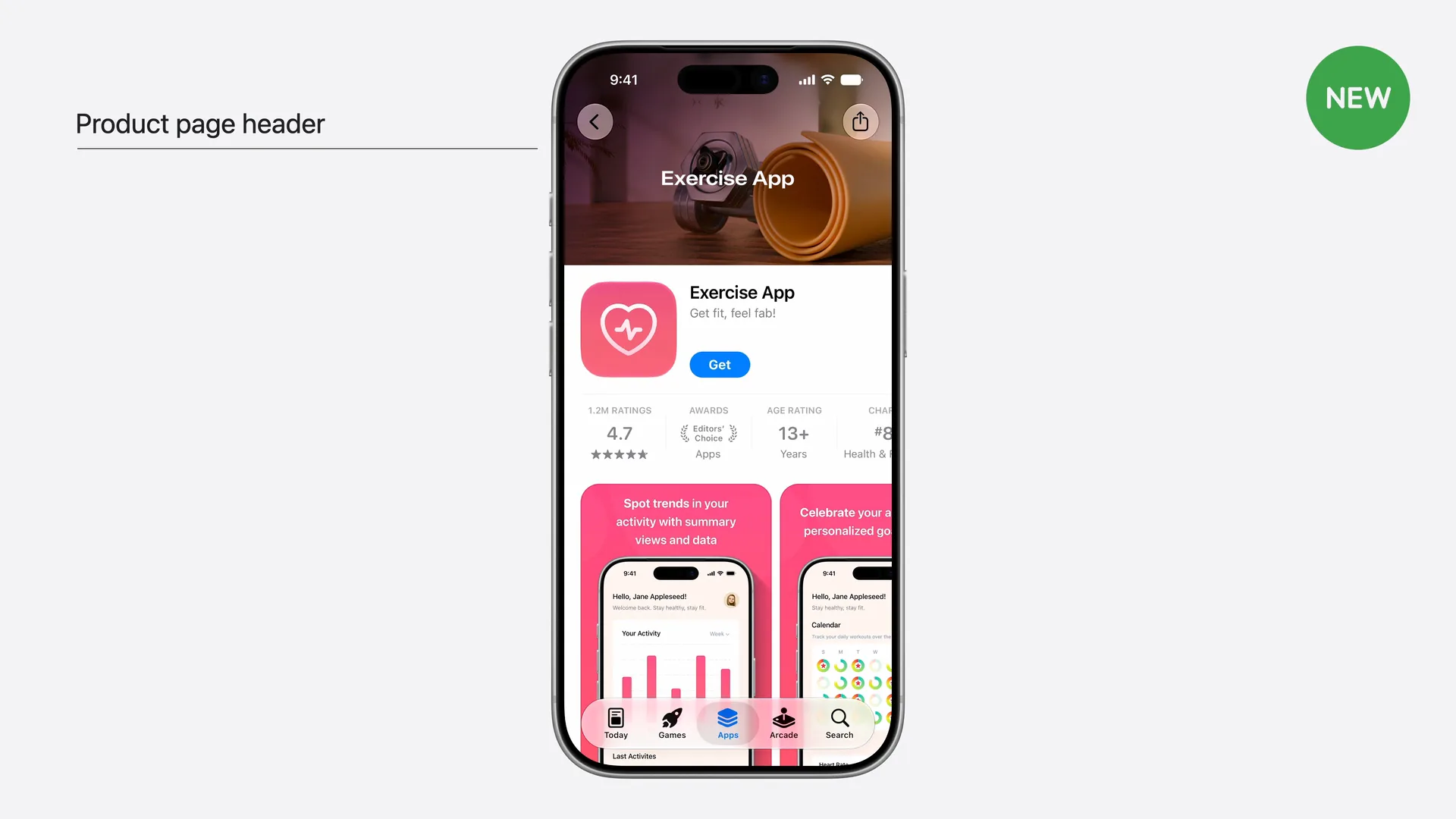
The header is one of three creative assets, along with the search results asset and the universal asset that can fill both places. Our overview of the WWDC26 changes explains how they fit together.
Where it shows #
- Your product page, at the top, on iPhone and iPad, in every orientation.
- Custom Product Pages. Each one can have its own header, so a link from an ad or your website can land on a matching visual.
- Product Page Optimization. You can test different header visuals against each other.
- When your app is featured. Apple says creative assets can appear when the App Store features your app.
The header only shows on iOS 27 and iPadOS 27 or later. People on older versions see your product page without it.
Product page header size #
| Image | Video | |
|---|---|---|
| Size | 3840 × 1646 pixels | 3840 × 1646 pixels |
| Aspect ratio | 21:9 | 21:9 |
| Format | .jpeg, .jpg or .png | .mov, .m4v or .mp4 |
| Frame rate | — | 30 or 60 fps |
| Length | — | 5 to 30 seconds |
| Other rules | No alpha channel or transparency | Loops; muted by default, people can unmute |
The size is exact, not a range. You can also use a 5244 × 2950 PNG universal asset in the header slot; see the universal asset guide. Sizes are from Apple's creative assets specifications, checked on October 21, 2026.
The header safe area #
Apple doesn't print safe area numbers in its documentation. They're in its header templates for Photoshop and Pixelmator, as an art safe area box. Here it is to scale:
Product page header 21:9
3840 × 1646 px
Safe area 1646 × 661, 43% × 40% of the canvas
| Pixels | Share of canvas | |
|---|---|---|
| Canvas | 3840 × 1646 | 100% |
| Art safe area | 1646 × 661 | 43% of the width, 40% of the height |
| Safe area position | x 1097, y 493 (top-left corner) | Centered both ways |
| Margin left and right | 1097 each | |
| Margin top and bottom | 493 each |
That box is small. More than half of the width and most of the height can be cropped, because one image has to fill a phone held upright and an iPad held sideways. So:
- Put text, your logo and the focal point inside the box. The headline, the character's face, the product shot.
- Fill the rest with something that can be cut. A background, a texture, a scene that still reads when only the middle is left.
- Don't line things up with the edges. A logo in the top-left corner is outside the safe area and may disappear.
- Check it in Preview. App Store Connect's Preview shows the page on iPhone and iPad, in both orientations and every language, before you submit.
Design tips from Apple #
From Apple's asset guidance:
- One clear idea. A dense, cluttered header gets lost.
- Design for a first-time visitor. Show what is most compelling to someone who has never heard of your app.
- Short text, if any. A short phrase that adds to the image rather than describes it, translated for every language you support.
- No prices, discounts, URLs or copyright symbols, no other platforms or stores, and no Apple awards such as Editor's Choice.
- 4+ content, even if your app is rated higher.
- For video: pick a strong poster frame, lead with your best moment, loop cleanly, and make it work with the sound off.
How to upload a header #
There are two ways, and both go through App Review:
- With an app version. Add the header on the version page in App Store Connect, preview it, and submit the version.
- In Asset Library. Upload the image or video on its own and submit it for review, with no new version.
Once an asset is approved, you can switch your header to it and publish right away. That makes a seasonal or campaign header a quick change rather than a release.
The header doesn't replace your screenshots #
Your screenshots still show right under the header, and they are still what people scroll through before they decide. Plan the header and the screenshots as one set, with the same colors, type and message, and update them together.